# Nordic ID NUR Connect
> Kalipso Studio 6.1 documentation · https://doc.sysdevmobile.com/kalipso/6.1/documentation/actions/group-rfid/nordic-id-nur-connect
>
> Connects to a Nordic ID NUR RFID reader through the integrated reader, auto USB, socket, serial port or Bluetooth.
Connect to a Nordic ID NUR Reader.
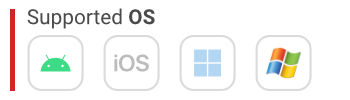
Action available for the following operating systems:
### Parameters
* **Connection Type** **- Integrated Reader** _-_ Uses the integrated Reader of the equiment.
* **Connection Type** **- Auto USB** _-_ Connects throught a automatic USB connection.If this returns successfully it does not mean that a connection to a device existis. The connectino will be automatically established when a device is connected to a USB port. To know if a connection currenty exists you need to call "Nordic ID NUR Is Connected".
* **Connection Type** **- Socket** _-_ Connects to the reader using a Socket Connection.
* **Server** _\ -_ The IP address of the defined Nordic ID NUR Reader.
* **Port** _\ -_ The port for the defined Nordic ID NUR Reader.
* **Connection Type** **- Serial** _-_ Connects to the reader using a Serial Port Connection.
* **Port** _\ -_ The COM port for the defined Nordic ID NUR Reader.
* **Connection Type** **- Bluetooth** _-_ Connects to the reader using a Bluetooth Connection.
* **Server** _\ -_ The MAC address of the defined Nordic ID NUR Reader.
:::warning
Bluetooth connections are only available for Android.
:::
:::info
For Win32 (Desktop and Simulator), you need to obtain the NURAPI.dll from NordicID and place it in the same folder as your executable.
:::