Mobile Provisioning Profile
A mobile provisioning profile is a file generated and signed by Apple that lists the devices where an App can be installed.
Here there are also 2 approaches that you can follow to create this file.
- Apple Developer Account
If you have a paid Apple Developer Account, you can create this file in your Apple Developer Account. - Using Xcode
If not, or simply if you just prefer to use Xcode, you will need to connect your iOS device to Xcode and use Xcode to do this.
- Xcode
- Manually
Create a mobile provision profile using Xcode
1-Open Xcode
2-Create a new XCode project
3-Select the Single View App option
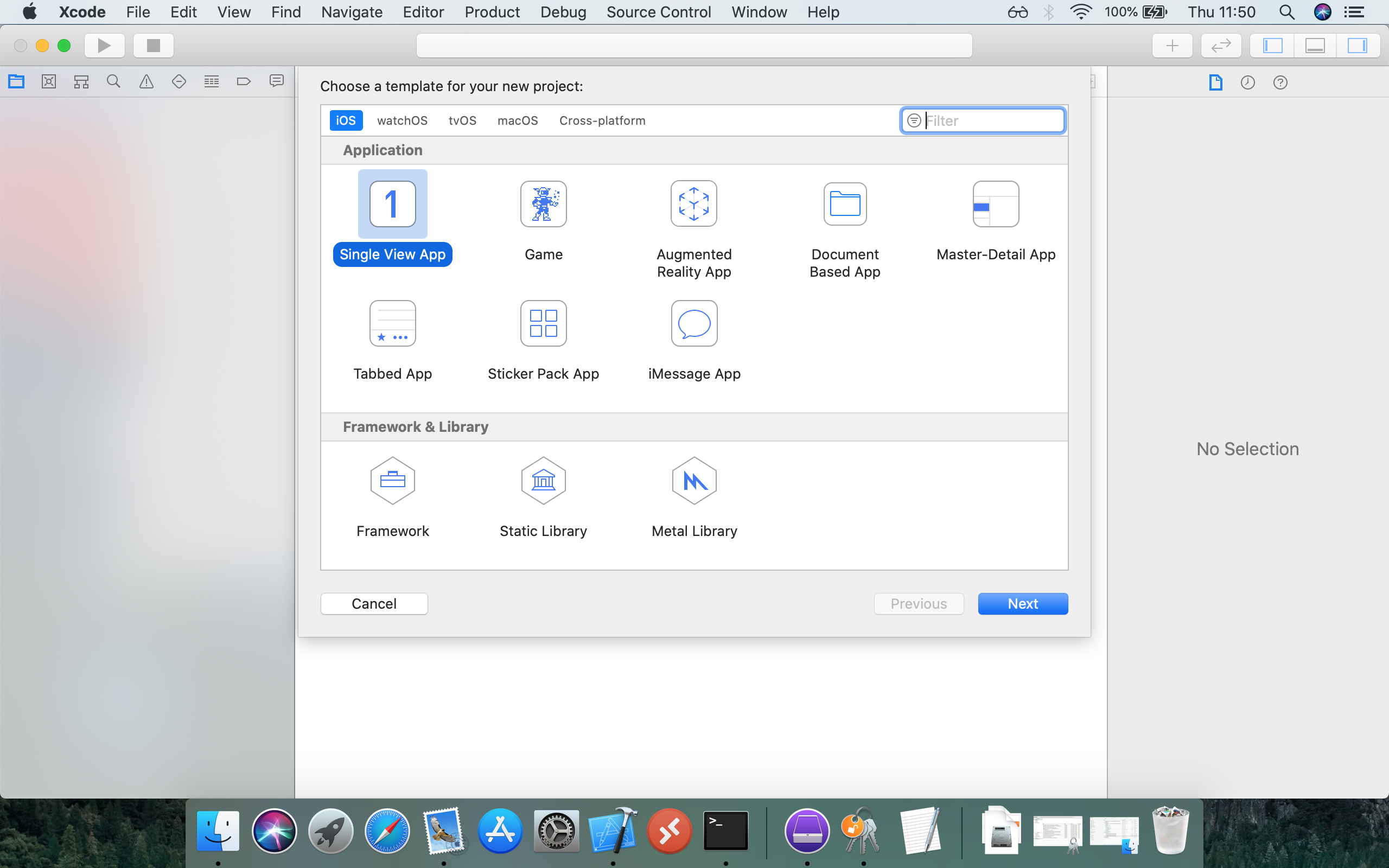
4-In the product name enter the name of the project, use kclientv50
5-Enter the Organization Name, and the Organization Identifier, for example com.yourcompany
(it is advised to use all in lowercase letters for project name and organization identifier)
6-Confirm the Bundle Identifier name that was given, since you will need this in Kalipso Designer later. If you used the options from above, it will be com.yourcompany.kclientv50
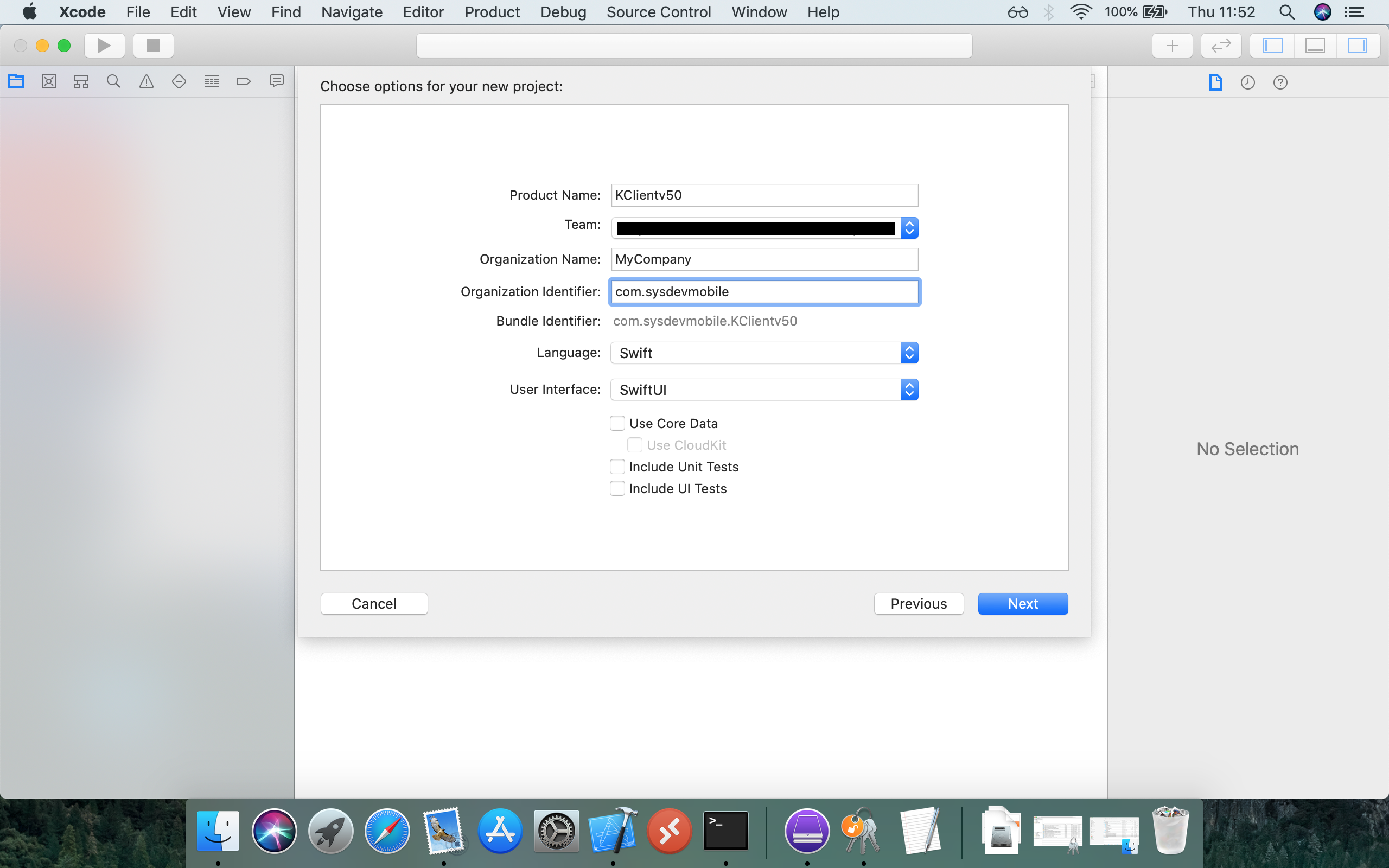
7-Select a folder and Save your project
8-Next plug your iOS device to Xcode and confirm that next to the Play button you have selected your iOS device
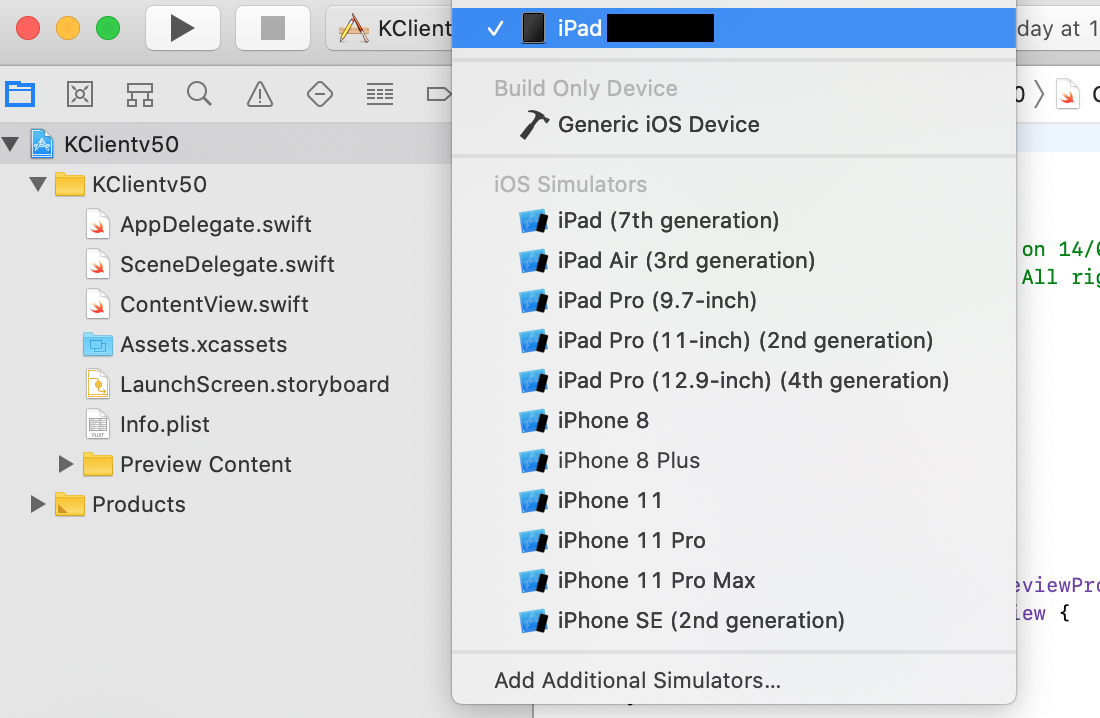
9-Then press the Play button to test the App on your device
10-Follow any additional necessary steps to install and test this App on your iOS device
11-Uninstall this App from your iOS device so you can latter install KClient
Once this is done, go to:
Finder and open folder
"/Users/[your user name]/Library/MobileDevice/Provisioning Profiles"
for macOS 15 (Sequoia)
"/Users/[your user name]/Library/Developer/Xcode/UserData/Provisioning Profiles
or
Open Terminal and type
open Library/MobileDevice/Provisioning Profiles/
for macOS 15 (Sequoia)
open Library/Developer/Xcode/UserData/Provisioning Profiles
In this folder, the most recent file should be the needed mobile provisioning profile.
Copy that file into your PC where you have Kalipso Designer.
Create a mobile provisioning profile on your Apple Developer Account
Add your iOS device to your Apple Account
- Go to https://developer.apple.com/
- Certificates, IDs & Profiles or https://developer.apple.com/account/resources/devices/list
- Devices and press +
- Enter your device UUID
-7f3577f22d68203706cb9564b0fe7120.png)
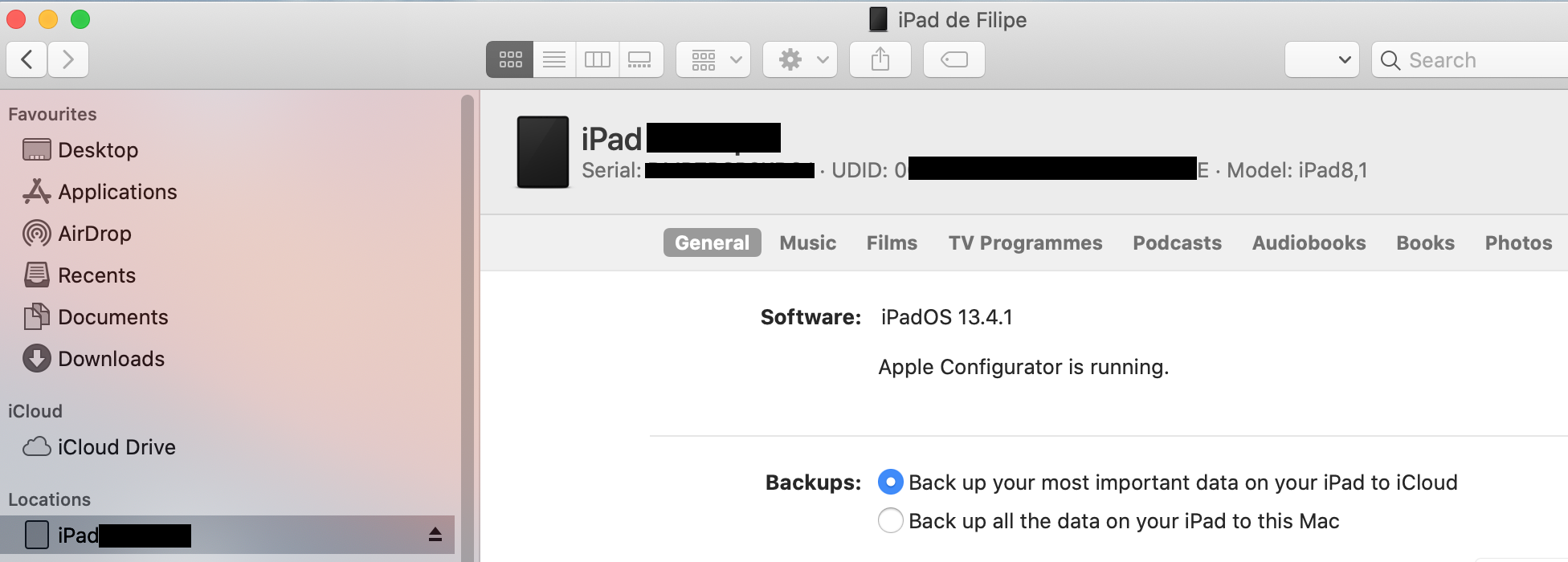
If you do not know your device UUID, connect it to your MAC or Windows PC with an USB cable.
In the MAC go to Finder, Select your device, and on the top bar click on the label bellow the name to see the device information.
In Windows, go to iTunes, select your device and click on the Serial Number label untill you see the device UUID
Create the provision profile
1-Go to https://developer.apple.com/
2-Certificates, IDs & Profiles or https://developer.apple.com/account/resources/profiles/list
3-Devices and press +
4-Select iOS App Development
-2f0917561fdebd96efcb56247a18591b.png)
5-In App ID enter * or manually select the option XC Wildcard. If you have created a specific APP ID for KClient, you can also select that App ID in this option
-cac3487799dec997cd2442fea57a1f53.png)
6-Select the development certificate that you created earlier
-321685a37b2dedbe3f162f6d4f7e94f9.png)
7-Select the devices where you want to be able to install KClient
-d23b8e24c1541b764cda29934bcdb012.png)
8-Enter a name that you can recognize for this Provision Profile
9-Generate the profile
If you want to test Push Notifications, then you cannot use the wildcard, you need to create an App ID, enable Push Notifications for that App, and then select that APP ID for the mobile provisioning profile.
Once you have the provision profile, download this file to the PC where you have Kalipso Designer