Commit
A commit is a snapshot of your project at a specific point in time. Each commit records the changes you've made and includes a message describing those changes. Commits create a history that allows you to track the evolution of your project and revert to previous states if needed.
Commit Window
Click Commit in the Git ribbon to open the Commit window:
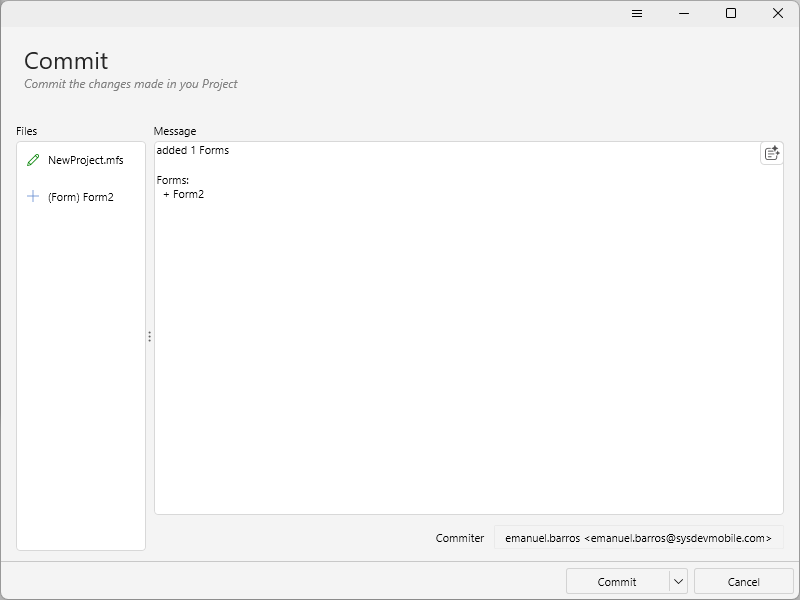
Commit window
The Commit window displays:
Files
The left panel shows all files that have been modified, added, or deleted since the last commit. Each file is marked with an icon indicating its status:
- Green checkmark - Modified file that will be included in the commit
- Red trash can - Deleted file that will be removed in the commit
- Plus sign (+) - New file that will be added to the repository
Message
The right panel is where you write your commit message. A good commit message should:
- Be clear and concise
- Describe what changes were made and why
- Help other developers (and your future self) understand the purpose of the changes
Generate Message

Generate Message button
Click the Generate Message button (clipboard icon) to automatically generate a commit message based on the changes detected in your files. This feature analyzes your modifications and creates a descriptive message, such as:
added 1 Forms

Forms:
  + Form2
The auto-generated message provides a good starting point, but you can edit it to add more context or details.
Committer
At the bottom of the window, the Committer field displays the user account of Kalipso Studio.
Commit Options

Commit options
Click the dropdown arrow next to the Commit button to see available options:
- Commit - Saves your changes to the local repository only. Use this when you want to save your work but are not ready to share it with others.
- Commit & Push - Saves your changes to the local repository and immediately pushes them to the remote repository. Use this when you want to share your changes with your team right away.
Click Cancel to close the window without committing.