Repository
The Repository window provides a comprehensive view of your Git repository, including the local path, remote connections, branches, and commit history.
Create Repository
To create a new Git repository for your project, click Create Repository in the Git ribbon. The New Repository window appears:
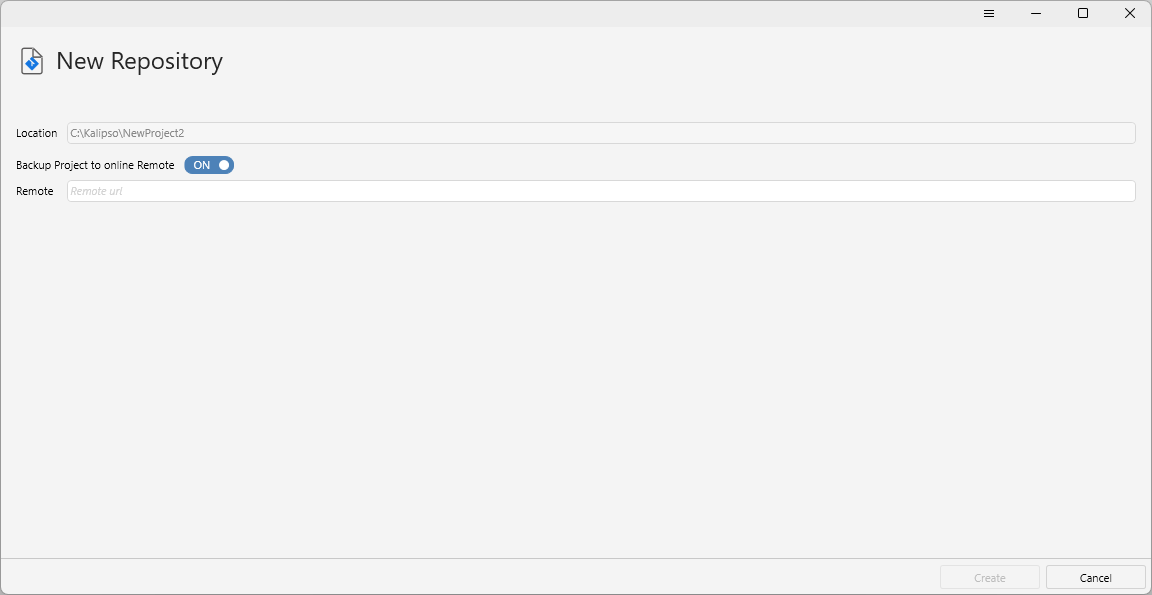
New Repository window
- Location - The local folder path where the repository will be created. This is typically your project folder.
- Backup Project to online Remote - Enable this option to connect your repository to a remote server (such as GitHub).
- Remote - The URL of the remote repository (e.g.,
https://github.com/username/repository.git).
Click Create to initialize the repository. If you enabled the remote option, you will be prompted for credentials.
Credentials
When connecting to a remote repository, you need to provide authentication:
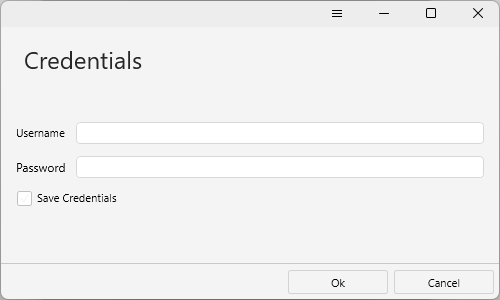
Git Credentials
- Username - Your username for the Git hosting service
- Password - Your personal access token
- Save Credentials - Check this option to save your credentials for future operations. The credentials are stored in the Windows Credential Manager, under Windows Credentials > Generic Credentials, in entries whose names start with
git:(e.g.,git:https://github.com).
For GitHub, which requires two-factor authentication, use a personal access token instead of your password. You can use either type:
- Personal Access Token (classic)
- Fine-grained personal access token - Create it as described in GitHub Token, selecting the repository you want to use. Set the Resource owner to the account or organization that owns the repository; otherwise, Git operations fail with a 403 error. For Git operations, the token only needs Contents (Read and write) and Metadata (Read-only) permissions.
View Repository
To view details of an existing repository, click Repository in the Git ribbon:
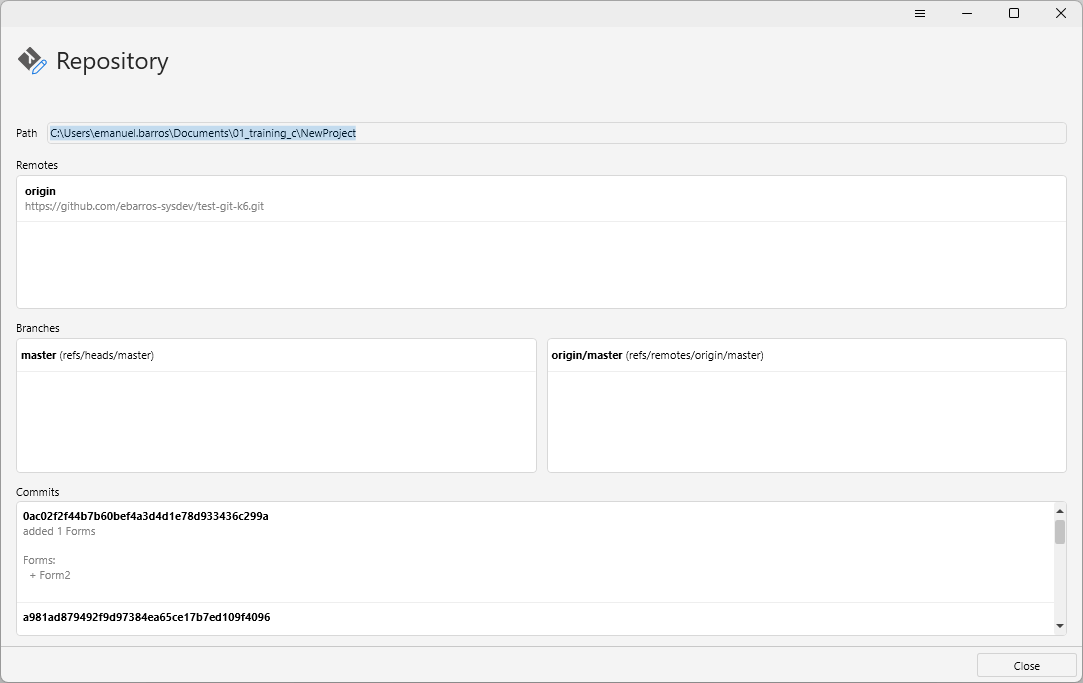
Repository information window
The Repository window displays:
Path
The local file system path where your repository is stored.
Remotes
Lists all configured remote repositories. Each remote shows:
- Name - The remote identifier (typically "origin" for the main remote)
- URL - The full URL of the remote repository
Branches
Displays all branches in your repository, organized into:
- Local branches (left panel) - Branches that exist on your local machine (e.g.,
master (refs/heads/master)) - Remote branches (right panel) - Branches that exist on the remote server (e.g.,
origin/master (refs/remotes/origin/master))
Commits
Shows the commit history for the current branch. Each commit displays:
- Commit hash - The unique identifier for the commit
- Message - The commit message describing the changes
- Details - Additional information about what was changed (e.g., Forms added, files modified)
Click Close to exit the Repository window