Objects
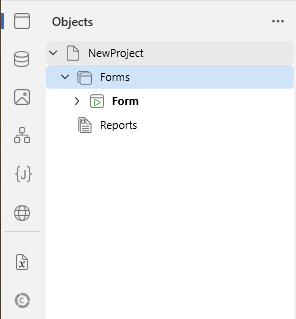
The Objects Tab gives you access to the forms created (and all information related to the selected form) and the reports (lists the reports that have been created).
1. Right-clicking on "Forms" brings up a context menu. There, the options are as follows:
- New - Creates a new form
- Open All - Opens all forms in the design area
- Close All - Closes all forms in the design area
- Tile - Arranges, in the design area, each open form in a geometric tile shape.
- Cascade - Arranges, in the design area, each open form in cascade.
- Top Left - Arranges all open forms aligned to the top and left of the design area. They overlap.
- Paste Form - Pastes a pre copied form in the folder.
2. When right-clicking on each Form in the tree, a context menu appears. The options allow:
- Open - Opens the selected form
- Copy Form - Copies the selected form
- Paste Form - Paste the previous copied form
- Paste Control - Paste a previous copied control in the form
- Rename Current Plane - If there’s planes created rename the current one
- Properties - Opens the properties window for the selected form
- Actions - Access the actions related to the form
- Duplicate - Duplicate the form
- Set as First Form - Sets the form as the first. In a project can only be one first form
- Check Usage - Checks the usage
- Refresh - Refresh the information/actions/control/etc. in the form
- Convert Portrait to Landscape - Converts the form’s layout from portrait to landscape
- Convert Landscape to Portrait - Converts the form’s layout from landscape to portrait
- Delete - Deletes the selected form
- Reset Local Vars, Timers and Planes - As the name indicates, resets the related information
- Add as Template - As the design included in the form as a template