iOS USB
Requirements
- Apple Developer account (paid)
- GitHub account
- iOS device running iOS 17 or later
Enable Developer Mode on iOS
On your iOS device, go to Settings → Privacy & Security → Developer Mode and turn it on. The device will restart.
Connect the Device
Plug your iOS device into your PC with a USB cable. On the device, tap Trust This Computer when prompted.
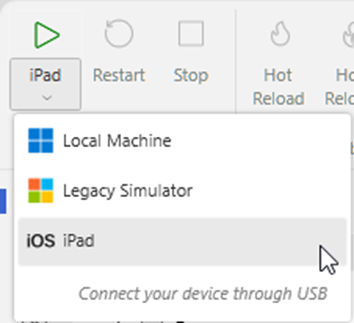
In Kalipso > Test, a new iOS icon appears with your device name. Before you can test, you need:
- An Apple certificate (.p8)
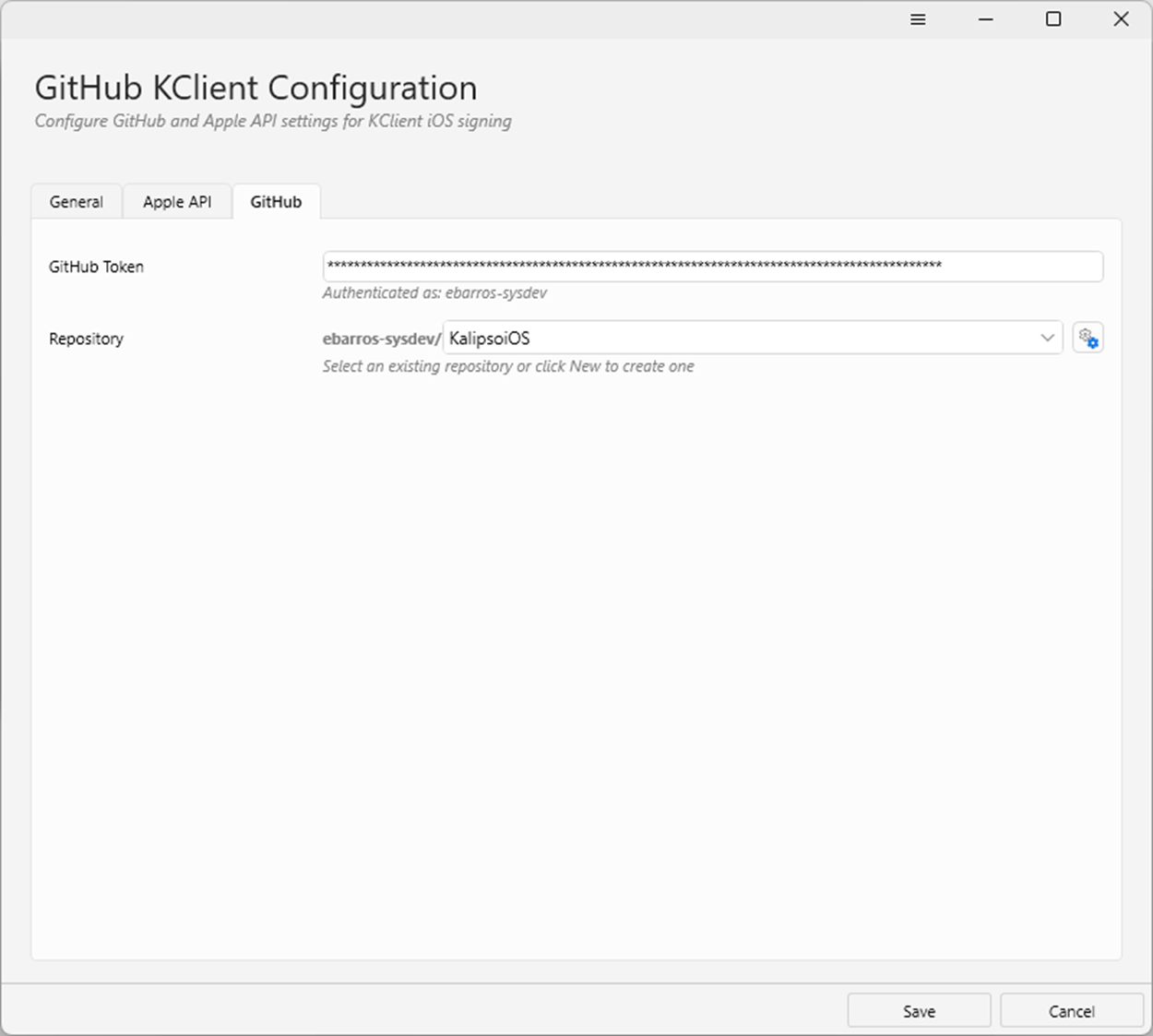
- A GitHub personal access token
The next sections walk through both.
Apple Certificate
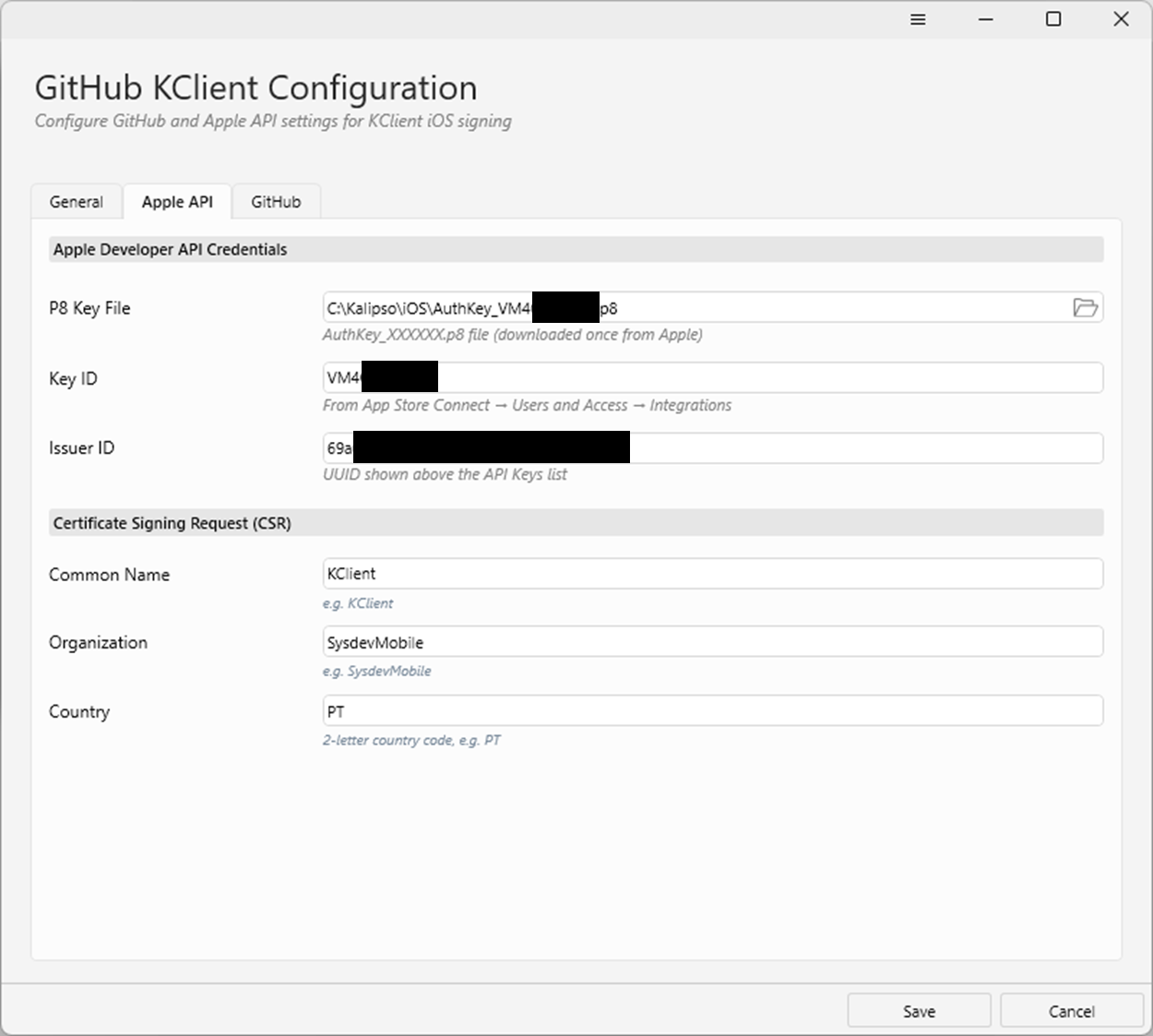
In this section you'll get three things from Apple: the .p8 certificate, the Key ID, and the Issuer ID.
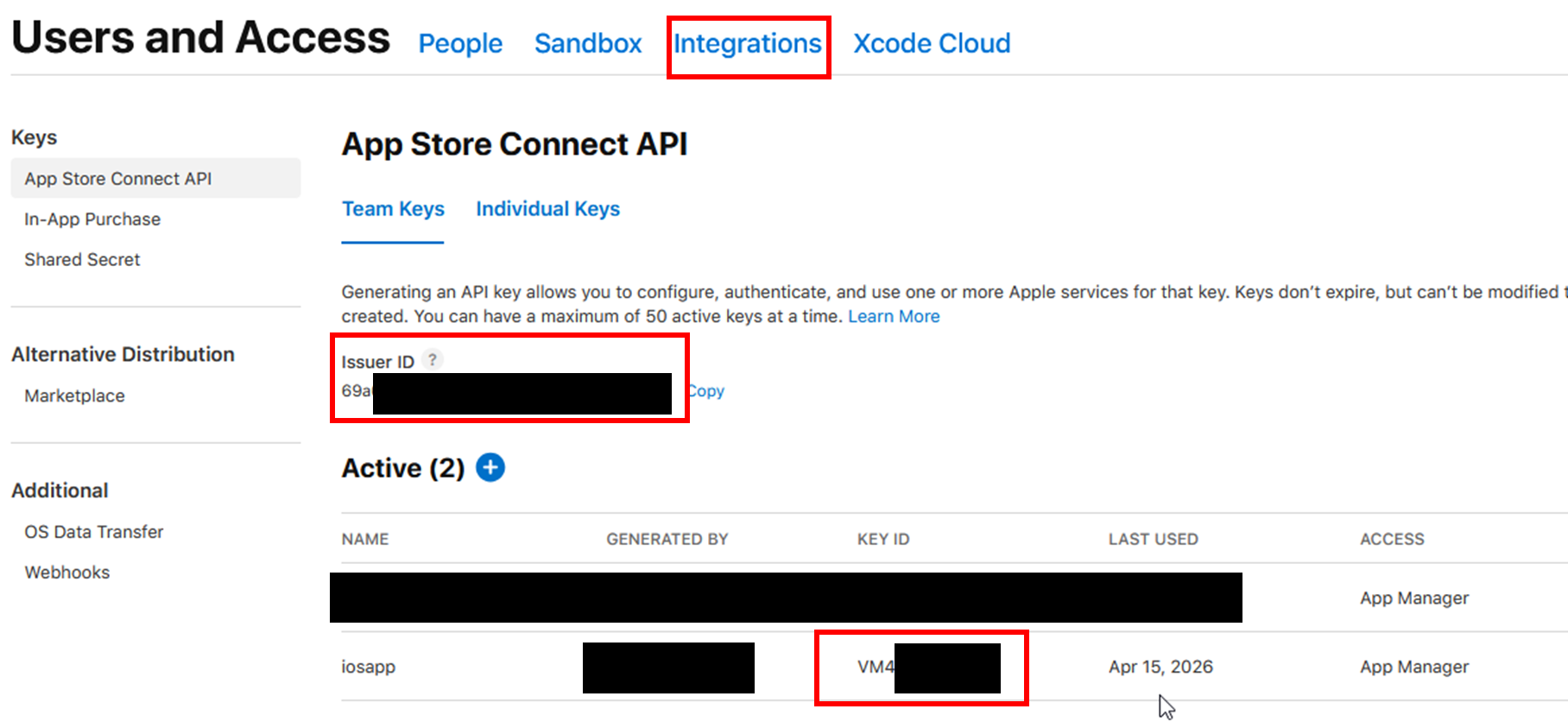
Go to App Store Connect → Users and Access → Integrations
or
sign in at developer.apple.com/account and navigate to:
App Store Connect > Users and Access > Integrations.
Create the P8 key
- Click the + button to create a new key.
- Give it a name and set the role to App Manager.
- Download the certificate (
.p8file). - Copy the Key ID and Issuer ID shown on the page.
You can only download the .p8 file once. Keep it in a safe place.
GitHub Token
- Create a new GitHub repository.
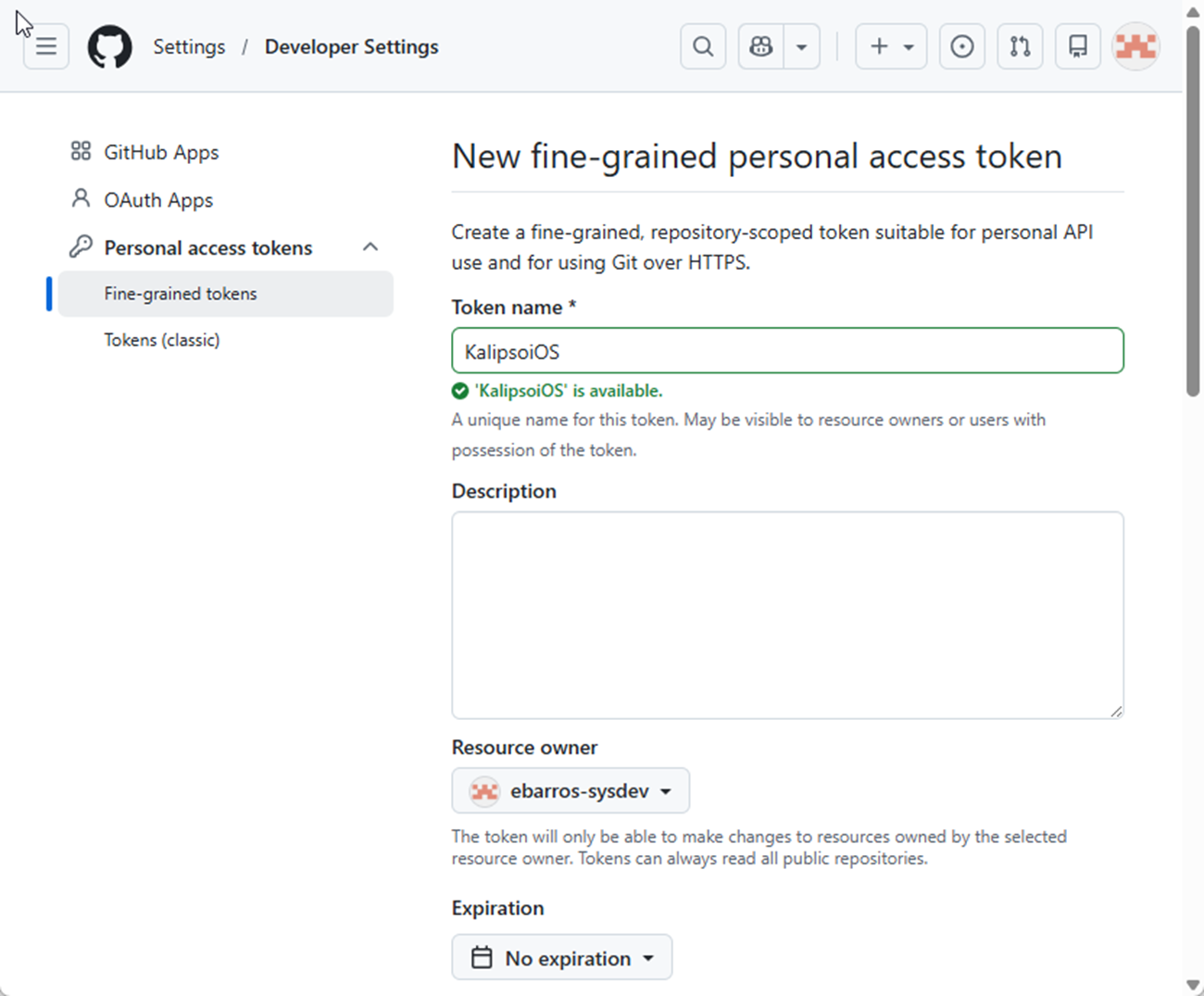
- In your GitHub account, go to Settings → Developer Settings → Personal access tokens → Fine-grained tokens.
- Click Generate new token, give it a name and an expiration date.
- Under Repository access, select the repository you just created.
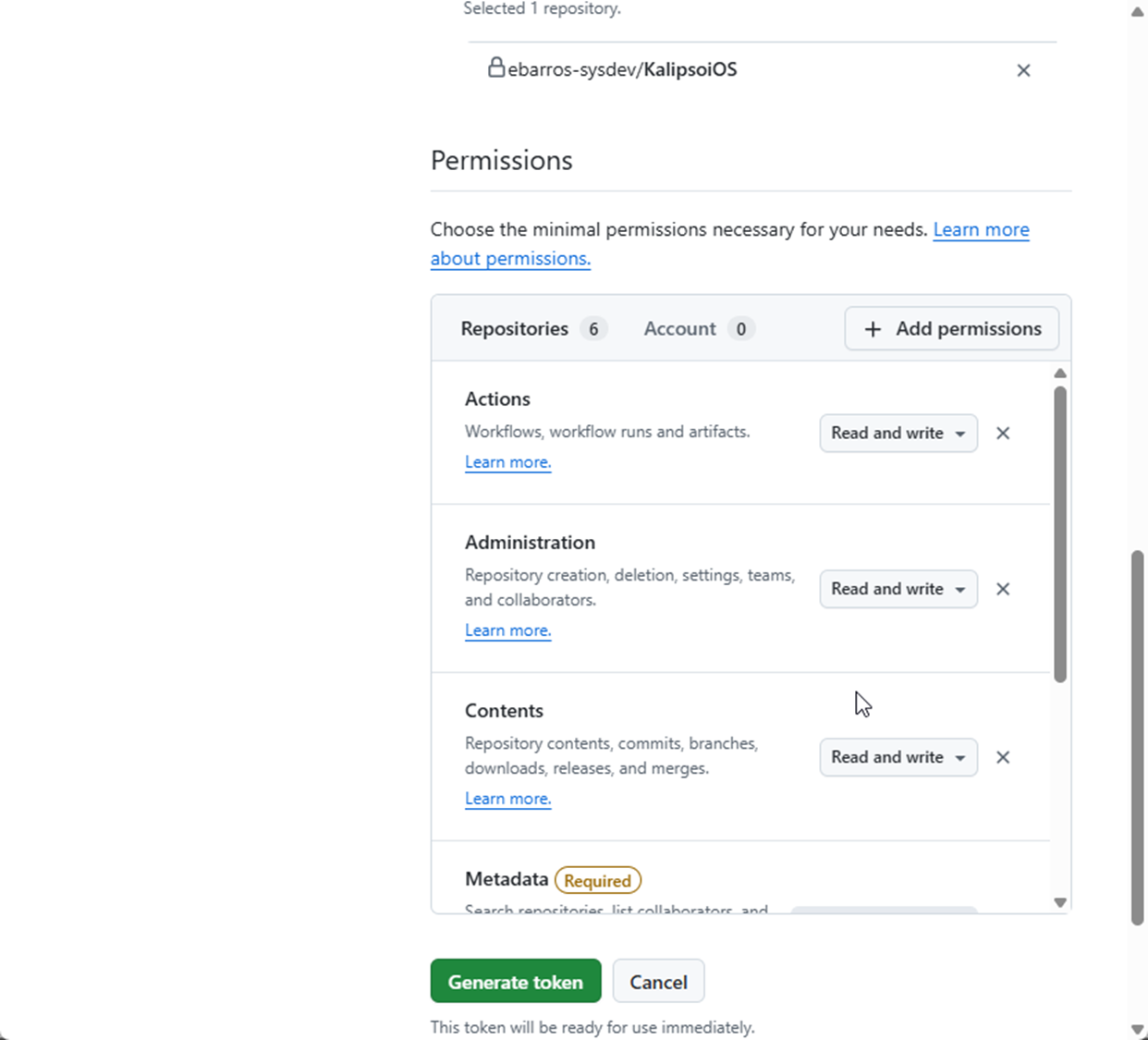
- Under Repository permissions, set:
- Metadata — Read-only
- Actions, Administration, Contents, Secrets, Workflows — Read and write
The token is shown only once. Copy it and keep it in a safe place.
Install KClient and Upload Your Project
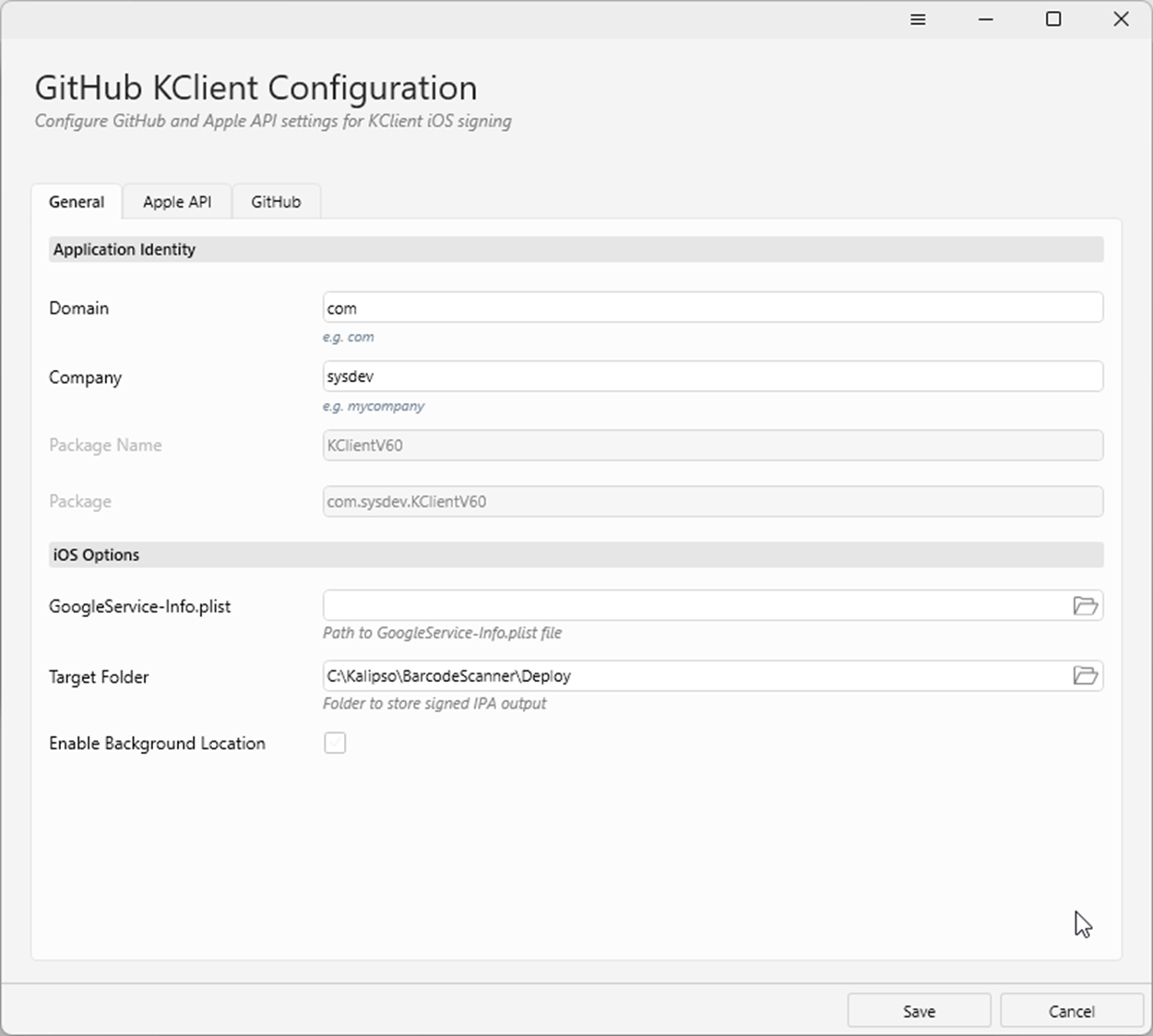
You now have everything needed. In Kalipso:
- Apple API tab — select the
.p8certificate and fill in the Key ID and Issuer ID. - GitHub tab — paste the token and select the repository.
Kalipso will use GitHub to sign kclient.ipa with your Apple certificate and install it on your iOS device — no Mac required.
If signing fails, see Troubleshooting below.
Troubleshooting
Certificate limit reached
If signing fails, it's usually because your Apple account has reached the maximum number of iOS Development certificates allowed. You need to revoke one before you can create a new one.
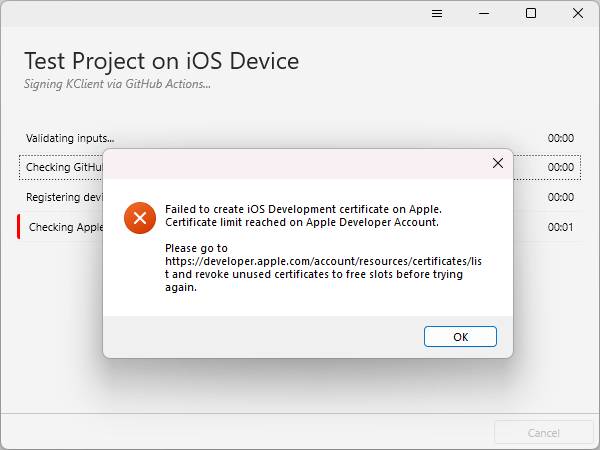
- Go to Certificates, Identifiers & Profiles (or developer.apple.com/account → Certificates).
- Revoke one existing iOS Development certificate.
- Try again from Kalipso.